


AniFlow - AI Anime Video Maker
4.565.00 Reviews
App Specs
- Version
- 1.0.74
- Updated On
- License
- Free
- Downloads
- 100,000+
- Developer
- Make Your Wish LLC
- Categories
- Art & Design
- Platform
- Android
Screenshots
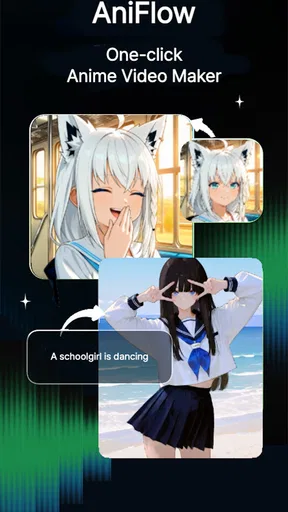
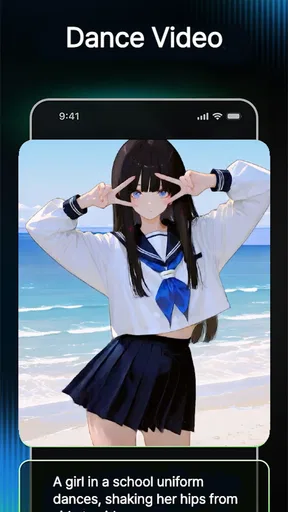
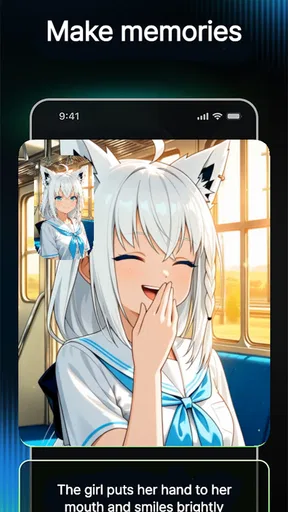
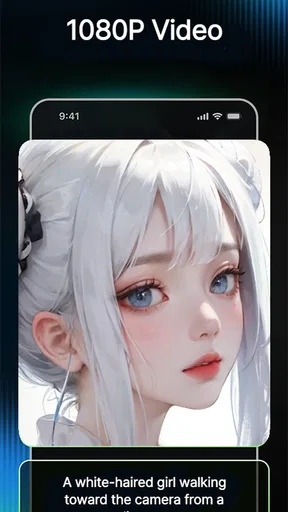
 Analysis by AppCompare
I’d approach AniFlow - AI Anime Video Maker as a quick way to explore anime-style video creation, not as a replacement for a full animation workstation. It is an art and design app from Make Your Wish LLC, and its AI focus is aimed at people who want to turn a visual idea into a short animated piece without first learning a complicated timeline. The appeal is easy to understand: start with a character or scene in mind, try a few creative choices, and see whether the result feels worth developing.
That difference matters if this is your first time making animation. Traditional drawing and editing apps give you detailed control, but they can demand patience before you get anything moving. AniFlow is better suited to a beginner who wants to experiment with anime video concepts and learn by trying. I would still treat the result as a starting point: AI can reduce the technical workload, but it cannot decide what makes a story clear, a character appealing, or a sequence emotionally convincing.
Getting Started with AniFlow
Jumping into the world of anime creation has never been easier. Once you download and open the app, you're greeted with a clean and intuitive interface. It's designed to be user-friendly, even if you're a complete newbie. The app holds your hand through the process, making it feel less like a chore and more like an adventure.
The setup is a breeze. You start by selecting your characters and backgrounds from a library that’s as vast as it is diverse. Whether you're into fantasy landscapes or futuristic cityscapes, AniFlow has got you covered. The character customization options are pretty impressive too. You can tweak everything from hair color to clothing, which means your characters truly reflect your creative vision.
Make the First Scene Small and Specific
For a first attempt, I would not begin with a long story or a cast of several characters. Pick one character, one setting, and a simple action you can explain in a sentence. A student stepping into a rainy city street, for example, gives you a concrete visual target without forcing you to solve several scene changes at once. That small scope makes it easier to judge whether the character, background, and movement work together.
It also helps to think in pictures rather than broad plot ideas. “A mysterious adventure” is hard to turn into a focused first scene; “a character notices a glowing sign and turns toward it” gives the app a more practical creative direction. If the first result is not quite right, you can identify what feels off instead of starting over with an entirely different idea. This is a useful way to keep experimentation fun rather than letting it become a cycle of random choices.
Creating Your Masterpiece
Once your characters and settings are in place, it’s time to dive into the animation process. This is where the magic happens. Thanks to AI technology, animating your scenes is as simple as dragging and dropping. You can make your characters move, talk, and interact with their environment effortlessly. The AI handles the complex stuff, so you don’t have to worry about the technical details.
Worth Reading Before You Choose

Flipboard Shows What News Apps Must Do Beyond the Feed

Switching to Android Auto Means Rethinking Your Driving Routine

Google Calendar Makes a Crowded Week Easier to Manage

Ludo King Makes the Most of the Minutes Between Plans

Baby Panda World Brings Quick Play to Modern Phones, but Its Game Library Feels Busy

ESPN’s Live Game View Makes Following Close Games Easier
The app also includes a variety of pre-set animations that you can apply to your characters. Want your character to perform a backflip or strike a dramatic pose? A couple of taps, and it’s done! You can even customize these animations to suit your story, making each video unique and personal.
How to Get More from a First Attempt
A practical tip is to change one creative choice at a time. If a scene feels wrong, first try a different pose or movement while keeping the character and background fixed. If you change everything at once, it becomes difficult to tell which choice improved the result. This is especially helpful when you are learning what kind of prompt or setup gives you the look you had in mind.
I would also plan the opening and ending image before fussing over details. Even a short clip feels more deliberate when it begins with a readable pose and finishes on an image that could serve as a punchline, reveal, or reaction. That approach does not require advanced editing knowledge; it simply gives the animation a clear purpose. It is a better use of your time than endlessly adjusting small visual details before you know whether the basic idea works.
AniFlow is a better fit for visual experiments, character moments, and quick story sketches than for projects that need frame-by-frame control. If you are trying to make a polished, tightly timed sequence for a client or a larger production, a conventional animation or video-editing tool is likely to give you more precise control. The trade-off is that those tools can involve a steeper learning curve. I would choose based on whether speed and approachable experimentation matter more than exact control.
Sound and Final Touches
No anime is complete without a killer soundtrack. AniFlow offers a selection of background music and sound effects to enhance your story. The music library is constantly updated, so you can keep your videos fresh and engaging. You can also import your own music if you have a specific vibe in mind.
Before you wrap up your project, the app allows you to preview your video. The preview feature is super handy for catching any last-minute changes or tweaks you might want to make. Once you’re satisfied, exporting your video is quick and easy. You can share your creation directly to social media or save it to your device for later.
Preview with a Viewer in Mind
When you review a clip, I’d watch it once without pausing and ask whether the main action is immediately understandable. Then watch again for smaller issues, such as a movement that feels out of place or a sound that competes with the mood. Separating those checks keeps you from trying to fix every detail at the same time. It also helps you decide whether the clip is ready to share as a playful experiment or needs another pass.
Sound is a creative choice, not just a finishing checkbox. A dramatic track can make a simple gesture feel more serious, while a lighter sound can keep the same scene playful. If you bring in your own music, make sure it suits the mood and that you have the right to use it wherever you plan to post the video. For a casual private draft, the priority may simply be whether the sound supports the scene; for a public post, it is worth thinking about audience and usage rights too.
Everyday Ways to Use It
A realistic use for AniFlow is making a short character greeting or reaction to share with friends. You might build a character around a familiar in-joke, set the scene, and create a brief moment that works as a visual message rather than trying to produce a complete episode. Another approachable project is a mood board in motion: a character, a setting, and a sound choice that capture the tone of a story you may want to develop later.
For someone who draws or writes, the app can also serve as a rough visualization tool. A quick animated scene may help you decide whether a character’s pose or a setting fits your idea before you invest time in a more detailed version elsewhere. I would not rely on an AI-generated clip as a final storyboard for a production that needs exact continuity, but it can make a vague concept easier to discuss with a collaborator or revisit later.
It is less suitable if your goal is to create a highly controlled animation with exact timing, consistent details across many scenes, or a carefully planned camera sequence. In that situation, a dedicated animation program or a standard editor offers a more direct route to precision. AniFlow’s strength is lowering the barrier to trying an idea; that convenience does not mean every output will match a specific vision on the first attempt.
Understanding the Cost and Audience
The app is free to install, with in-app purchases ranging from $0.99 to $49.99 per item. I’d begin with the free experience and decide whether the creative process suits you before considering any purchase. Since individual items can vary in price, check what a particular purchase includes in the app before committing. That is a sensible step if you are only experimenting or are unsure how often you will make videos.
AniFlow is rated for Everyone, which makes its general audience broad, but that is not a promise that every creative result will suit every viewer or every sharing context. If you are making a clip for a younger family member, I would still preview it yourself and choose the character, action, and sound thoughtfully. The app is most rewarding when the person using it brings a clear idea and makes deliberate choices, rather than expecting a finished story to appear without creative input.
Why AniFlow Stands Out
What really sets AniFlow - AI Anime Video Maker apart is its blend of simplicity and power. You don’t need a background in animation to create something amazing. The app does most of the heavy lifting, freeing you to focus on the creative aspects. Plus, it's regularly updated with new features and content, keeping it fresh and exciting every time you open it.
Another standout feature is the community aspect. AniFlow has a vibrant user community where you can share your creations, get feedback, and find inspiration. It's a supportive space for both amateur and seasoned creators.
Who Is Likely to Enjoy It?
In my view, the strongest audience is someone who likes anime visuals, wants to make short creative pieces, and does not want to start by learning specialist animation software. It can also suit a curious beginner who is happy to test ideas and accept that the first version may need adjusting. AniFlow has an average rating of 4.5 from around 1.5 thousand ratings, with over 50 thousand installs, so it has found an audience among people exploring this style of creation.
The current version is 1.0.59, and it runs on Android 6.0 and later. It was released on June 13, 2025, and is developed by Make Your Wish LLC. Those details are useful when checking whether it fits your device and deciding whether you want to try a relatively new creative app. The price to download is free, while optional in-app purchases are available, so the sensible first step is to see whether its workflow matches the kind of video you actually want to make.
If you mainly want a conventional video editor for trimming real footage, adding captions, and arranging clips, this is not the most direct choice. If you want to draw every frame yourself or need dependable continuity across a lengthy animation, a dedicated tool is likely a better match. AniFlow sits between those needs: it invites you to make anime-style video ideas quickly, while leaving room for you to decide how much creative control is enough.
Turning a Trial into a Small Project
Once you have made one scene you like, a useful next step is to create a second version with only one meaningful difference: perhaps a new setting or a different mood. Comparing two deliberate variations teaches you more than making several unrelated clips. Save or share the version that best communicates your idea, and keep the other as a reference if you want to return to it. This simple workflow can help you build confidence without turning a casual experiment into an unnecessarily large project.
For a first-time user, I would set a modest goal: make one clear moment, preview it, and decide what you learned. That could be enough for a social post, a private joke, or a visual note for a story. If the process leaves you wanting tighter control over timing or continuity, that is a sign to move to a more specialized animation tool rather than a failure of the experiment. If what you wanted was an approachable way to turn an anime idea into a short video, AniFlow is a reasonable place to begin.
In conclusion, if you’ve ever dreamed of creating your own anime videos, AniFlow might just be the app you've been waiting for. It’s fun, intuitive, and powerful, making the world of anime creation accessible to everyone. Whether you’re crafting an epic saga or a simple scene, AniFlow is your go-to tool for bringing your anime dreams to life. Give it a try and let your imagination run wild!
Pros
- Intuitive interface for easy navigation.
- Wide range of customization options.
- High-quality video rendering.
- Fast processing with AI technology.
- Regular updates with new features.
Cons
- Limited free version features.
- Occasional glitches in rendering.
- Requires a stable internet connection.
- In-app purchases can be pricey.
- Heavy battery consumption during use.
FAQs for AniFlow - AI Anime Video Maker
What is AniFlow - AI Anime Video Maker?
AniFlow is an innovative app that allows users to create anime-style videos using AI technology. It provides a variety of tools and features to customize your videos, including character design, scene creation, and special effects. Whether you're a fan of anime or a creator looking to explore new artistic expressions, AniFlow offers a user-friendly platform to bring your ideas to life.
How does AniFlow utilize AI in video creation?
AniFlow leverages advanced AI algorithms to automate and enhance the video creation process. The AI assists in generating anime-style visuals, animating characters, and adding effects. This technology makes it accessible for users with varying levels of expertise to create professional-looking content without needing advanced skills in animation or design.
Is AniFlow suitable for beginners?
Yes, AniFlow is designed to be user-friendly and accessible to beginners. The app includes intuitive tools and tutorials to guide users through the process of creating anime videos. With its straightforward interface and helpful features, even those with no prior experience in animation can start creating impressive anime-style videos.
What customization options does AniFlow offer?
AniFlow provides a wide range of customization options to help users create unique videos. You can design characters, choose different backgrounds, and apply various effects. The app also allows for fine-tuning animations and adjusting parameters to match your creative vision. With these options, users can tailor their projects to achieve the desired look and feel.
Are there any costs associated with using AniFlow?
AniFlow offers a free version with basic features, but it also has premium plans that unlock additional tools and resources. The premium subscription provides access to exclusive content, advanced features, and enhanced customization options. Users can choose the plan that best fits their needs, whether they are casual creators or looking for more professional capabilities.


